Technical Support FAQs

If you have not found the solution you need among the FAQs available, open a help incident or request a new FLVS Help Center (Service Now) account. Email helpdesk@flvs.net for additional questions.
For a list of supported operating systems, browsers and plugins, or to run a system check, visit the System Requirements page.
- Go to the FLVS Help Center.
- If you already have an FLVS Help Center account, log in.
- If you don't, scroll down to “Request a user account,” then select the “self-registration form” link.
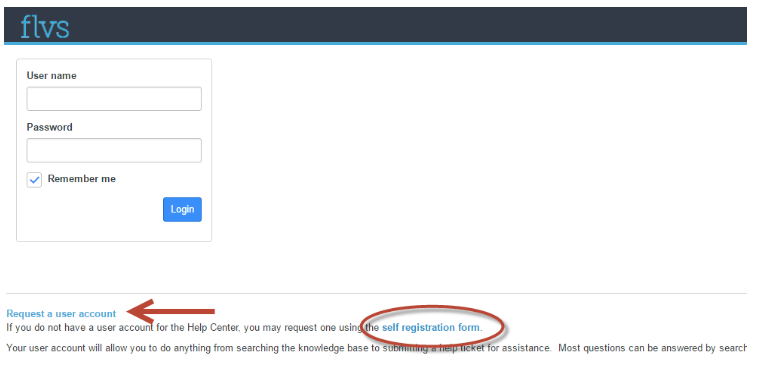
- Enter all required information.
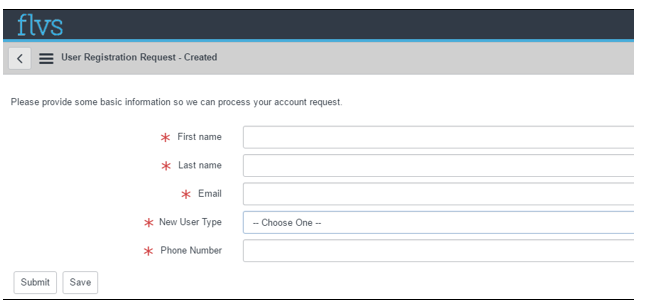
- Select the appropriate user type.
- When you're done, select “Submit.”
- You'll receive an email with your temporary password. The subject line is “Your Virtual School User Information.”
- When you log in with your temporary password, the system will prompt you to change it.
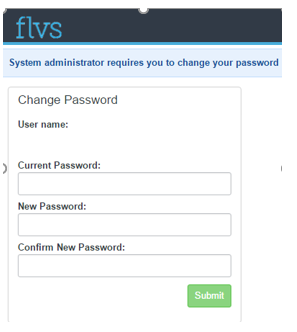
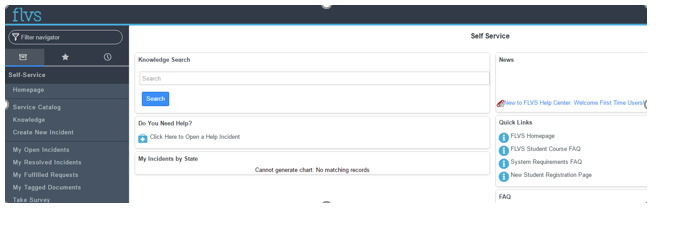
- Once your password is updated, you'll be taken to the self-service home page, where you can submit your request.
- Go to the FLVS Help Center.
- Select “reset your password here” in the middle of the page.
- Follow the instructions on the next page to reset your password.
Students should first try a different browser. If that doesn't fix the issue, submit a help ticket or call the Help Center at 1-800-374-1430 and select option 2.
The “Oops! You are not authorized…” message is caused by a system error during registration. If you see it while registering for courses, submit a help incident by following these steps:
- Go to the FLVS Help Center.
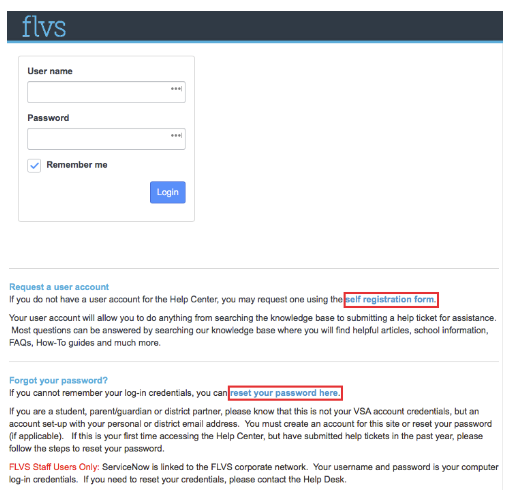
- Log in with your Help Center account. If you don't have an account, select “Self Registration Form.” If you don't remember your password, select “Reset Your Password Here.”
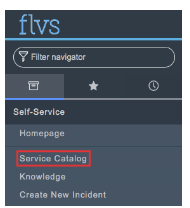
- After you log in, select “Service Catalog.”
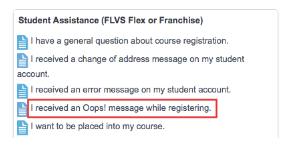
- In the Student Assistance (FLVS Flex or Franchise) catalog, select “I received an Oops! message while registering.”
- In the incident, include:
- The name entered for the account before the Oops! message appeared
- The username entered for the account before the message appeared
- The URL where the message appeared
- The web browser you were using
- What you were doing when the message appeared (for example, entering your phone number or home address, or going to the next page)
- Select “Submit.”
- An FLVS Help Center representative will contact you to help.
The “Oops” error message means there's a problem with your account.
If you see this error while registering for FLVS courses, call us at 1-800-374-1430 and select option 2, or submit a help ticket.
Tip: In Chrome, Edge and Firefox on a computer, press Ctrl + Shift + Delete (Command + Shift + Delete on a Mac) to go straight to the clear-data window.
Chrome
- In the address bar, enter
chrome://settings/clearBrowserData. - In the “Time range” drop-down menu, select “All time” to clear everything, or choose a shorter range.
- Select the items you want to clear, such as “Browsing history,” “Cookies and other site data” and “Cached images and files.”
- Select “Delete data.”
Microsoft Edge
- In the address bar, enter
edge://settings/clearBrowserData. - In the “Time range” drop-down menu, select “All time” to clear everything, or choose a shorter range.
- Select the items you want to clear, such as “Browsing history,” “Cookies and other site data” and “Cached images and files.”
- Select “Clear now.”
Firefox
- In the History menu, select “Clear Recent History.” If the menu bar is hidden, press Alt to show it.
- In the time range drop-down menu, select “Everything” to clear everything, or choose a shorter range.
- Select the items you want to clear, such as history, cookies and cache.
- Select “Clear.”
Safari (Mac)
- In the History menu, select “Clear History.”
- In the “Clear” drop-down menu, select “all history.”
- Select “Clear History.”
Safari (iPhone and iPad)
- Open the Settings app.
- Select “Safari.” On iOS 18 and later, select “Apps,” then “Safari.”
- Select “Clear History and Website Data.”
- Select “All History,” then select “Clear History.”
Chrome (Android)
- Open Chrome.
- Select the More menu (three dots), then select “Delete browsing data.”
- In the “Time range” drop-down menu, select “All time.”
- Select the items you want to clear, then select “Delete data.”
I'm unable to change my Flex/Homeschool password. I see an error that says “…Password Changed Failed.” How do I log in?
- Go to login.flvs.net. Under “Account Management,” select “Change Password.”
- Enter your current password.
- Enter a new password that meets these requirements:
- At least 8 characters long
- Contains at least 3 of the following:
- Uppercase letters
- Lowercase letters
- Numbers
- Special characters:
' " . , ~ \ / - _ = + < > ; : ! @ # $ % ^ & * ( )
- Doesn't repeat any character 3 times in a row
- Isn't one of your recent passwords
- Enter your new password again.
- Select “Change Password.”
If you still get an error, choose a password you've never used before and try again.
- Go to the Flex/Homeschool login page.
- Log in with your username and password.
- Select “Account Management” at the top of the screen, then select “Change Security Questions.”
- Choose new security questions and enter your answers.
Parents and students can learn what malware is and how to get rid of it.
What is malware?
Malware, short for “malicious software,” is software designed to disrupt your computer, steal sensitive information or gain access to private systems. It can show up as code, scripts, ads or images, or hidden inside other software. Viruses, spyware and ransomware are all types of malware.
How do I get rid of malware?
If you think your computer has malware, don’t worry. Malware is designed to sneak onto computers in ways that are hard to spot, so even careful users can be affected. Here are some tips from the FLVS Help Desk:
- Update your operating system. On Windows, use Windows Update. On a Mac, use Software Update in System Settings.
- Update your browser. Keeping your browser up to date is one of the best ways to prevent infection. Turn on its pop-up blocking, download protection and automatic updates.
- Use antivirus software. Windows comes with Microsoft Defender Antivirus built in, or you can install a different antivirus program. Keep it updated and turned on, and run a full scan at least once a month. Don’t run two antivirus programs at once, because they interfere with each other.
- Use anti-malware software. Many antivirus programs, including Microsoft Defender, already include anti-malware (also called anti-spyware) protection. Keep it updated.
- Use a firewall. Windows and macOS both have a built-in firewall. Make sure it’s turned on, unless you use a different firewall program. Don’t run two firewalls at once, because they interfere with each other.
- Use a spam filter. If your email program isn’t filtering enough spam out of your inbox, consider using additional spam-filtering software.
- Go to the FLVS Full Time login page.
- Select “Forgot Password?”
- Follow the instructions on the page to reset your password.
If you can’t reset your password, call the Help Desk at 1-800-374-1430.

 Whoops, that's an error!